
How to Cancel Your Saino Subscription on iPhone and Android
Subscriptions should be flexible, and cancelling yours on Saino is quick no matter which device you use. Because Saino subscriptions are billed through the App Store on iPhone and the Google Play Store on Android, the cancellation steps happen outside the app itself. Here's exactly where to go on each platform.
How to Cancel on iPhone (iOS)
If you subscribed to Saino Premium through the App Store, follow these steps directly in your iPhone's Settings app:
1. Open the Settings app on your device.
2. Tap your Name/Apple ID banner at the very top of the screen.
3. Select “Subscriptions.” This shows every active subscription linked to your Apple ID.
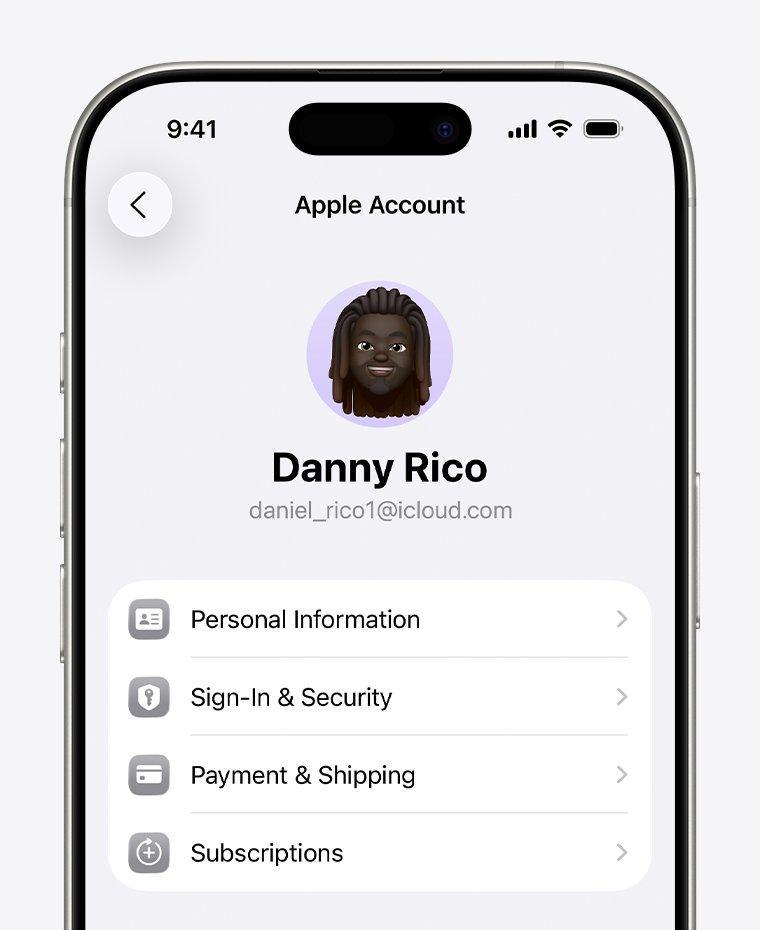
Tap Subscriptions under your Apple ID settings.
4. Find and tap Saino in your list of subscriptions.
5. Tap “Cancel Subscription” at the bottom of the page.
How to Cancel on Android (Google Play)
If you subscribed through the Google Play Store, cancelling takes just a few taps inside the Play Store app:
1. Open the Google Play Store app.
2. Tap your Profile icon in the top-right corner.
3. Select “Payments & subscriptions,” then tap “Subscriptions.”
4. Tap the active Saino subscription you want to end.
5. Tap “Cancel subscription” and follow the on-screen prompts to confirm.
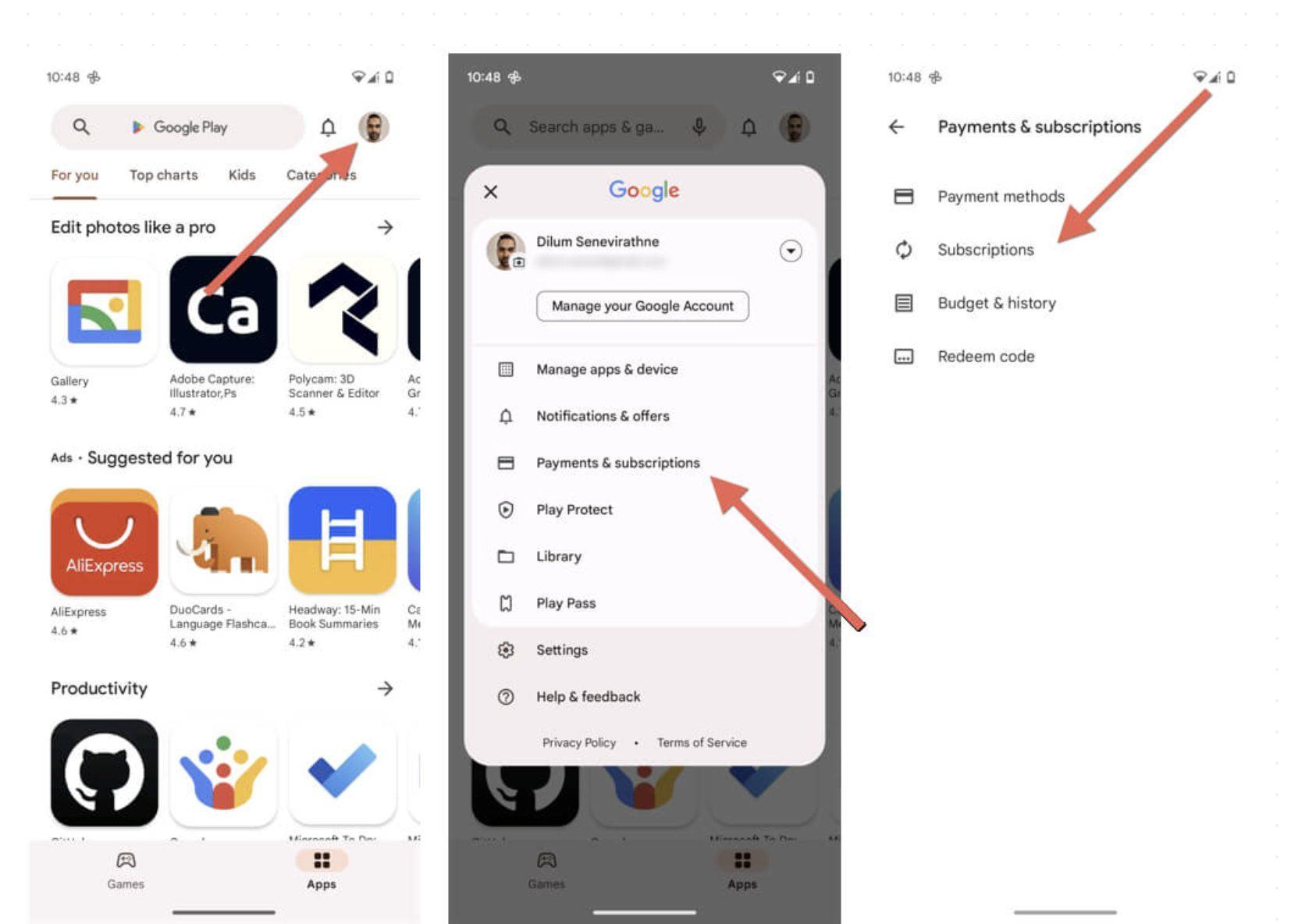
Manage and cancel your Saino subscription from Google Play's Subscriptions page.
What Happens After You Cancel
Cancelling doesn't cut off your access immediately. In most cases, you'll keep your Premium benefits until the end of your current billing cycle, and you simply won't be charged again once that period ends.
Frequently Asked Questions
Final Thoughts
Whether you're on iPhone or Android, cancelling your Saino subscription takes less than a minute once you know the right menu to tap. And if you decide you miss Premium later, coming back is just as easy.