
How to Sync Your Saino Chat History Between Devices
Getting a new phone shouldn't mean losing your conversations. Saino gives you two clear paths when you switch devices or reinstall the app: sync your existing chat history over, or start with a clean slate. Here's exactly how each option works, so you can pick the one that's right for you.
Option 1: Sync Across Devices with a QR Code
Choose this option if you're moving to a new device or reinstalled the app and want to keep your existing conversations.
📱 On Your Original Device
1. Go to Settings → Sync Chat History. Open the settings menu from your profile and select the "Sync Chat History" option.
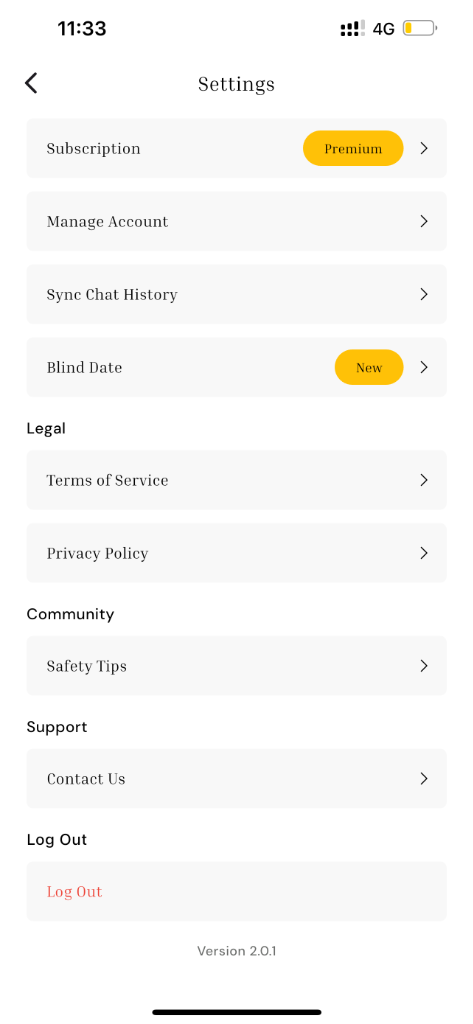
Step 1: Access the "Sync Chat History" option directly from the Settings menu.
2. Save your QR code. A QR code will appear on screen. Save it securely, or remember that you can view it anytime under Profile Settings. You can also save it as a screenshot.
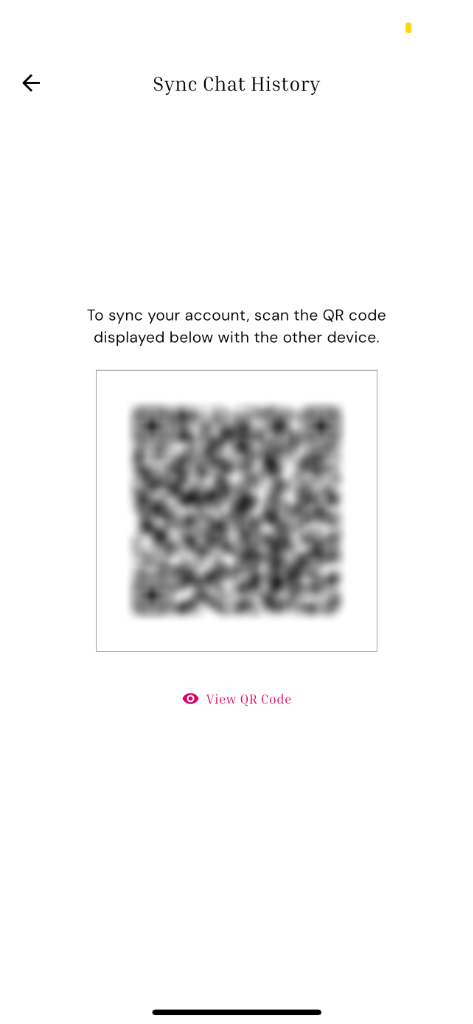
Step 2: View and save the generated QR code from the Sync Chat History screen on your original device.
📲 On Your New Device
3. Open Saino on your new device.
4. Tap “Scan QR code” on the Restore Your Chat Access screen.
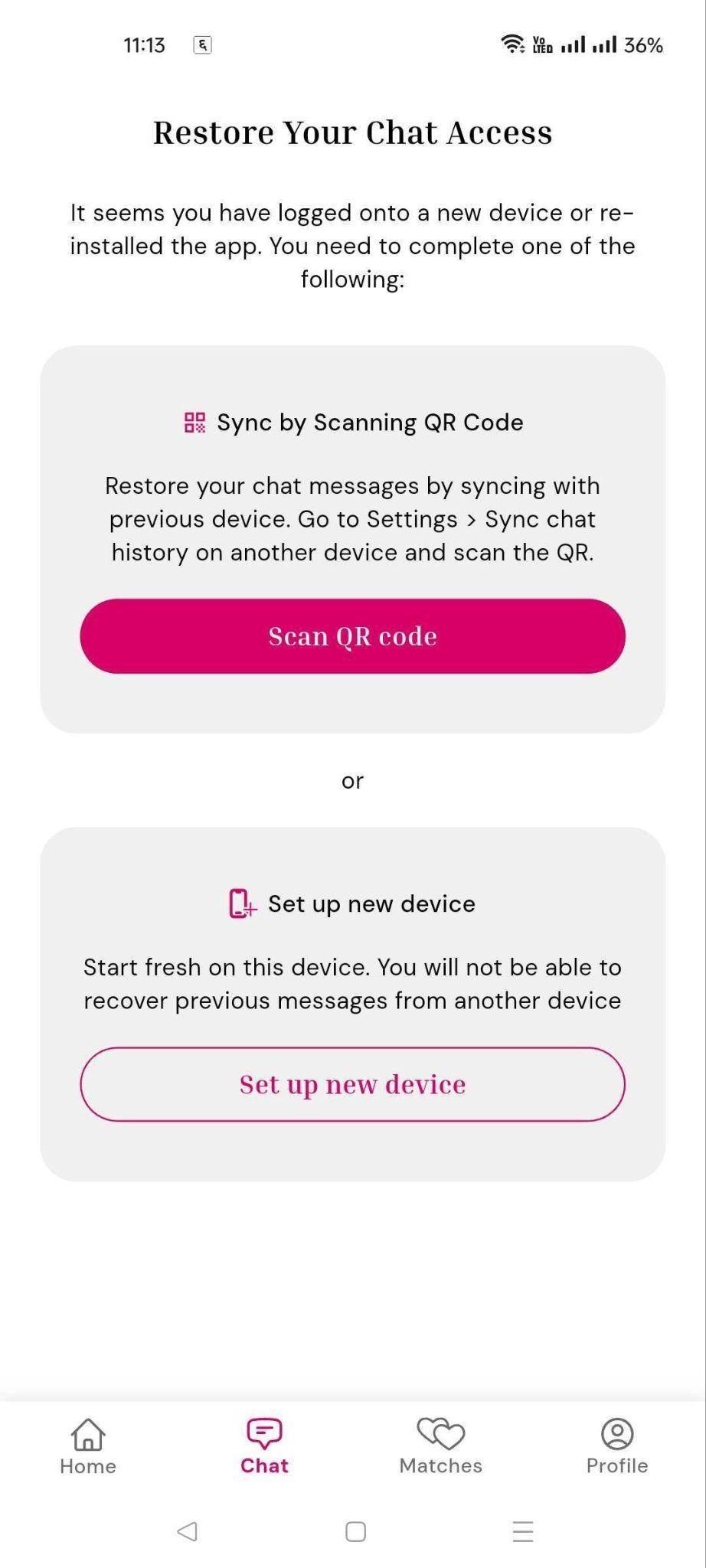
Step 4: Select "Scan QR code" or "Set up new device" on the Restore Your Chat Access screen.
5. Scan the code Scan the QR code generated on your original device (from Option 1) to sync both devices so that they can communicate and share the chat history. You can also upload the screenshot of the previously saved QR code.
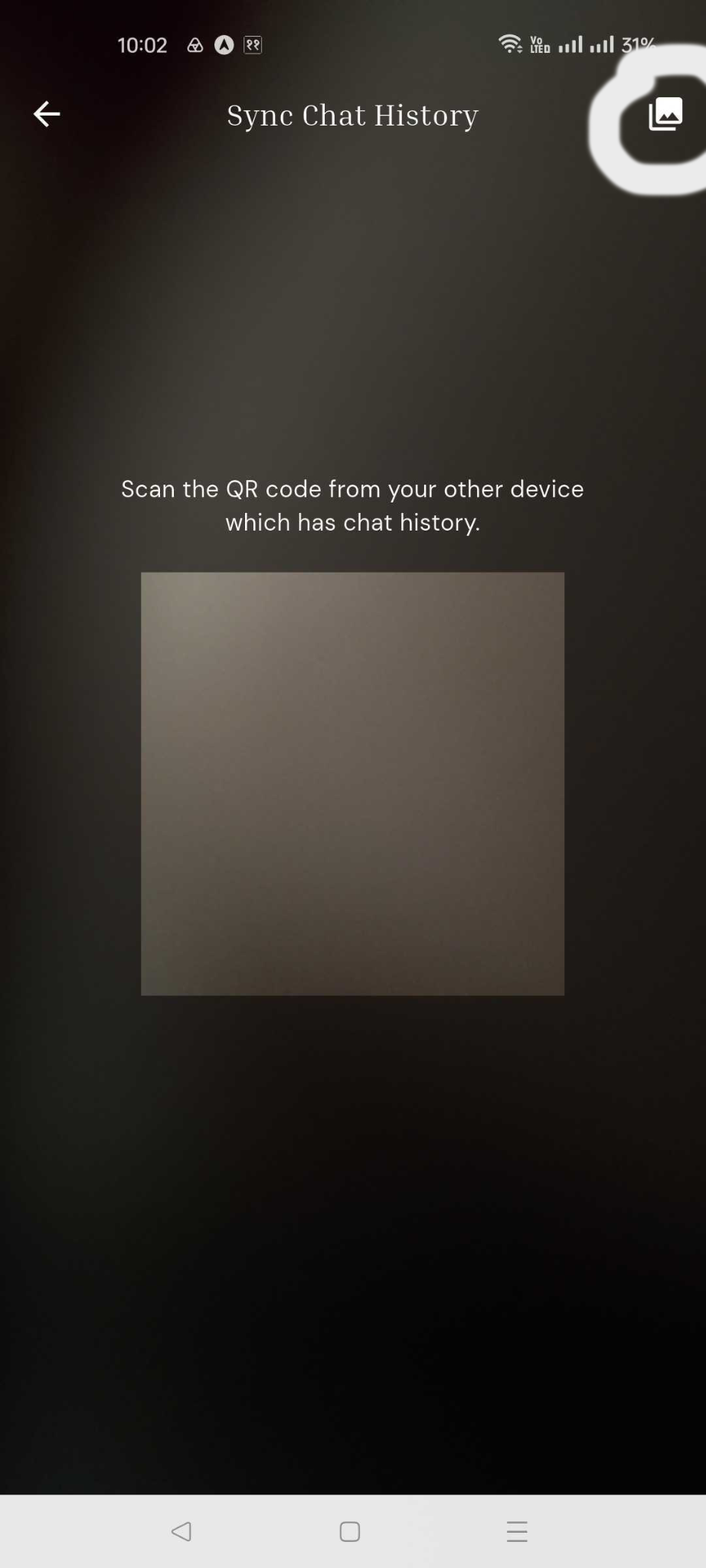
Step 5: Scan the QR code from your original device on the Restore Your Chat Access screen of your new device to sync them.
Option 2: Set Up as a New Device
If you don't have access to your old device, or you'd simply rather start fresh, this option is for you.
1. Tap “Set up a new device” on the Restore Your Chat Access screen.
2. Save the new QR code. A new chat key will be generated for your fresh account. You must save this QR code to sync this account with other devices in the future. Alternatively, you can always view it later from your Profile Settings as shown in Option 1, Step 1.
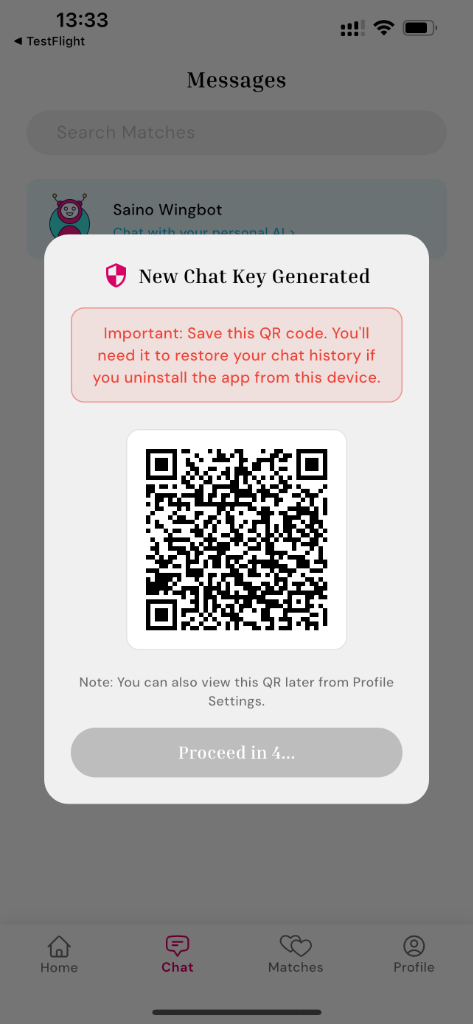
Save this new QR code if you plan to use multiple devices in the future.
3. Tap “I've securely saved my QR code” to finish the setup and enter your fresh account.
Which Option Should You Choose?
- Pick Option 1 (Multi-Device Setup) if you want to keep all your existing conversations and simply carry them over to a new device.
- Pick Option 2 (New Device) if you're okay leaving old messages behind in exchange for a clean start.
Frequently Asked Questions
Final Thoughts
Switching devices doesn't have to mean starting over. With Saino's QR code sync, your conversations can move with you in seconds or, if you'd prefer a clean start, setting up a new device is just as simple. Either way, you're back up and running in no time.